How to Create Grok Imagine Videos: An Ultimate Beginner’s Guide 2026
We’ll show you how to use Grok Imagine effectively for great results. Learn more!

Grok Imagine is one of the most fun AI video generators out there, at least in terms of creating viral-ready short clips with native audio - perfect for meme creators and social media managers. And for unmatched engagement, subscribers can also use its “Spicy” mode and native audio syncing features.
So, are you ready to turn text/images into video? All you need is to describe your desired output, choose settings, and press generate. Keep reading! We’ll show you how to use it effectively for great results.
Key Takeaways
-
Be as clear and specific with prompts - the more detailed the better. Follow this structure: Subject + Action + Lighting + Camera Movement + Mood
-
Start simple, then extend! Use the “Extend from frame” feature, then write a continuation prompt. (It’s ideal for multi-beat, explainer, and story content.)
-
Control the mood/visual impact of your video by clearly naming your lighting and camera movements (e.g., smooth pan right, slow dolly in). Don’t leave them to chance!
-
For people in the video, use wide shots and slow movements for professional and clean results.
How to start using Grok Imagine
Download the Grok app, or visit grok.com.
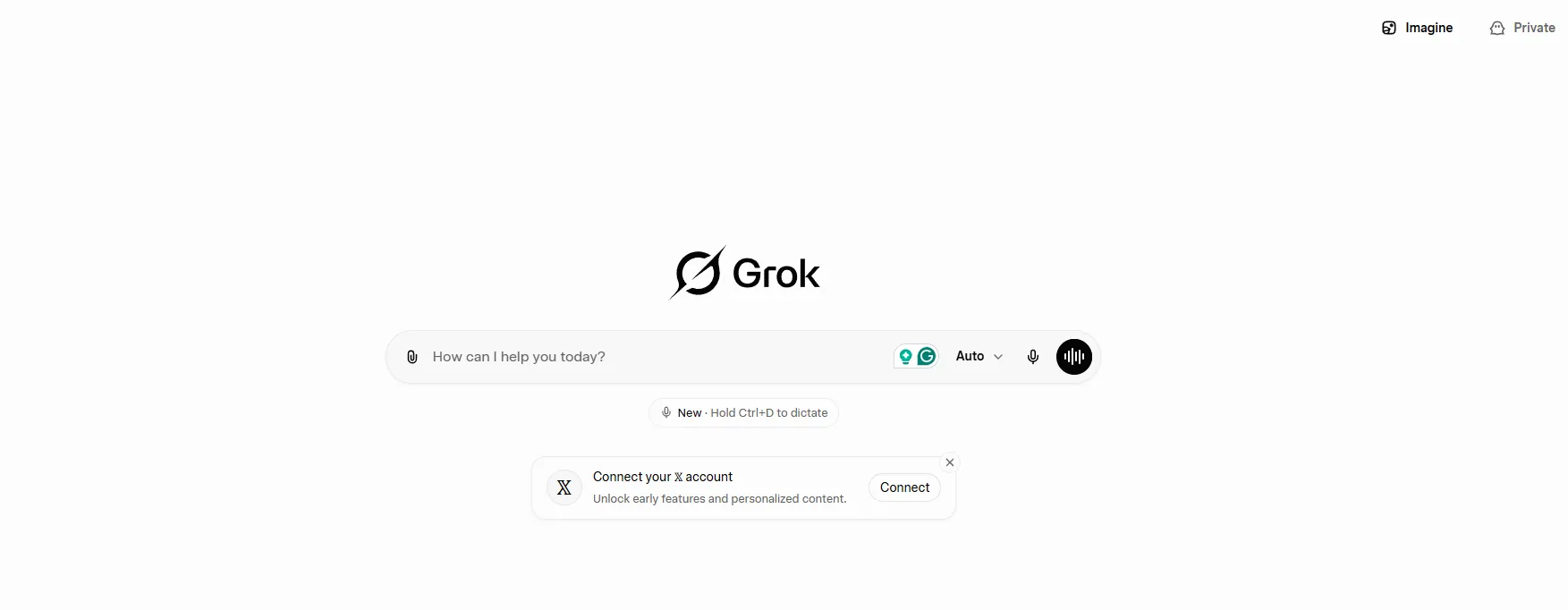
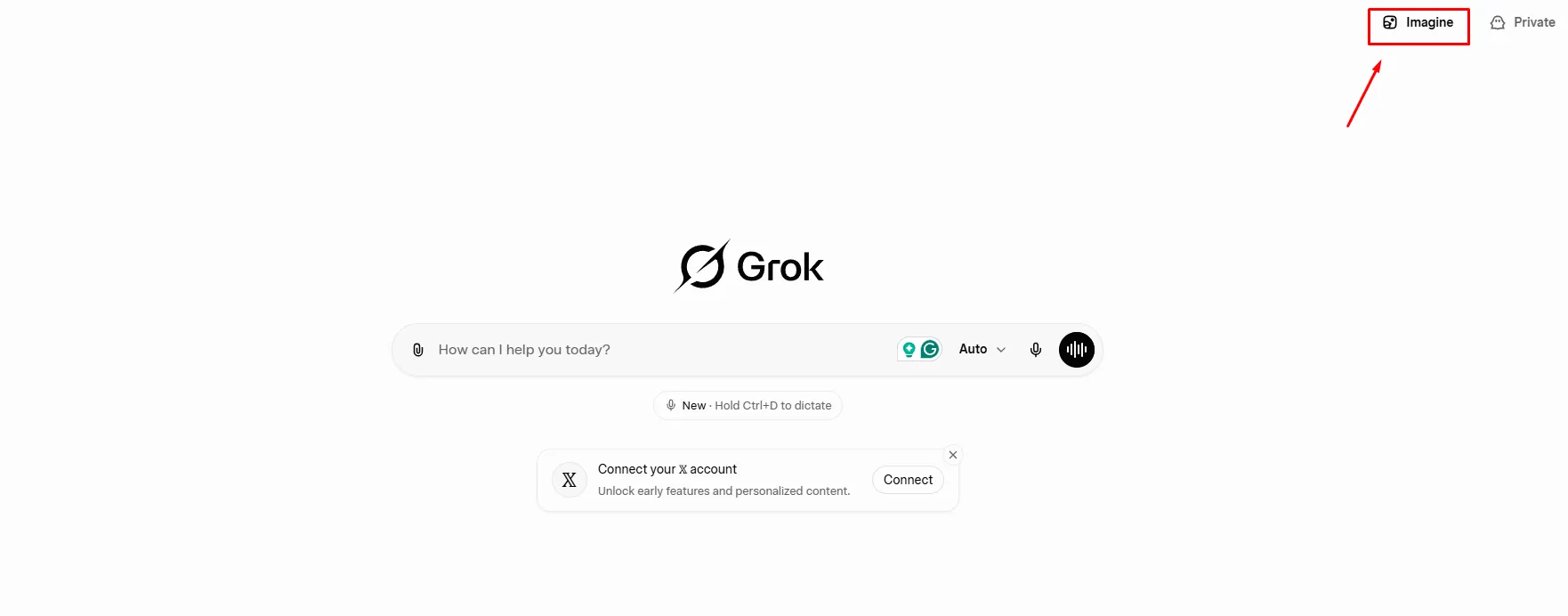
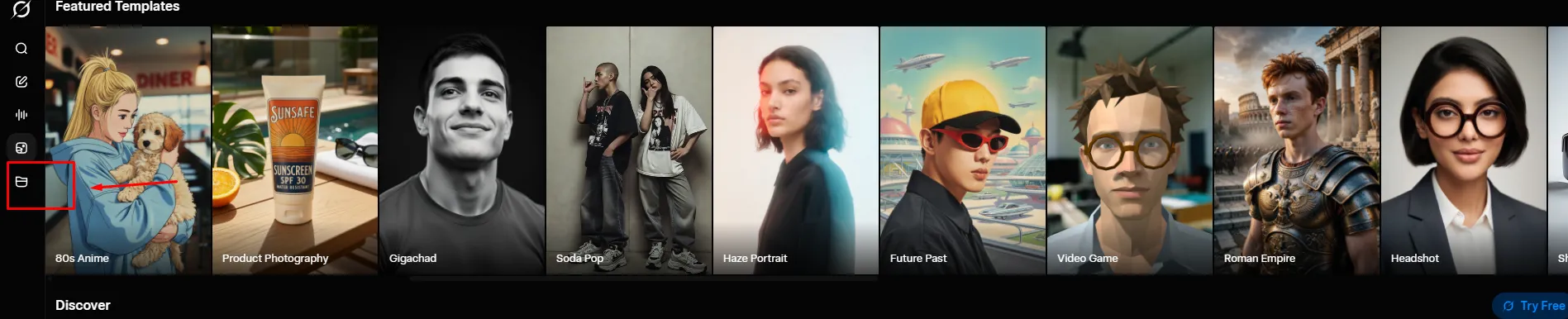
Find the “Imagine” tab, and tap it to open the image/video generation interface.
Find the input box/options.
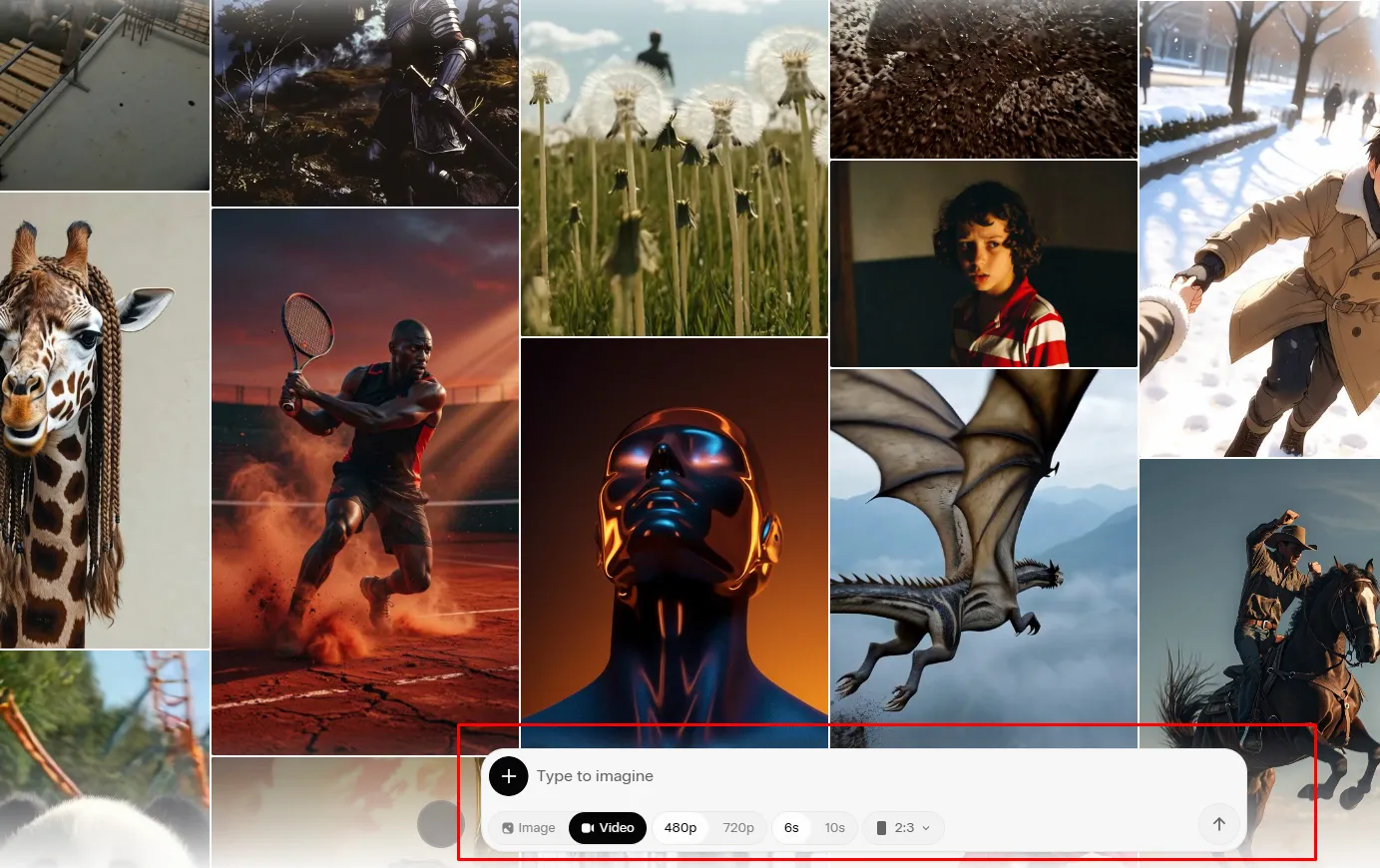
How to generate a video on Grok Imagine
Text-to-video
Do you have a specific scene in mind and want to generate a video clip directly (no image needed)? Type in a description of the scene you want to generate (what’s happening, how the camera moves, such as zooming in, panning to the left or right, etc.).
Image-to-video
This is the second option. Upload an image from your desktop or phone, or generate one in the Grok Imagine app. Animate the image into a short clip with synced audio.
Before generating -
-
Pick your settings, including the aspect ratio, duration, and quality. For instance, Grok Imagine supports 16:9, 9:16, 3:2, 2:3, and 1:1 aspect ratios and 480p or 720p videos.
-
Hit “Generate”!
-
Download and share. You can also save it to your library or share directly on X.
PRO TIPS
Use a detailed prompt - lighting, composition, subject - to generate an image, and then animate it! Ensure your prompt is specific and clear - describe motion, camera movement, and overall mood of the scene.
Do you want your video to match your ideal color palette, visual tone, or even brand style? Upload reference images (up to 7), and let Grok blend these with your text prompt to generate an output matching a specific feel/tone/look.
How to extend Grok Imagine videos
Choose a frame from your generated clip. This will serve as the starting point for the extension (Grok Imagine will carry forward everything from this frame, including audio, lighting, character positioning, and motion).
Each extension adds seconds to your clip and then connects it to the existing video.
Grok Imagine makes it possible to make the video feel continuous, rather than like it's from separate videos chained together. It’s ideal for creating -
-
Explainer sequences
-
Short narratives
-
Product demos
-
Multi-beat content
PRO TIP
Describe what will happen next in the scene with a continuation prompt.
How to write great Grok Imagine video prompts
Write a quality prompt - be as specific as possible to help the model generate a quality output instead of an ambiguous one. Here’s a good structure -
Subject + style or mood + lighting + camera angle + finishing details
Are you unsure how to write a detailed prompt? Open then Grok chat, describe what you want, and let it generate one for you. Satisfied? Copy and paste it into the Imagine interface.
Pro Tip
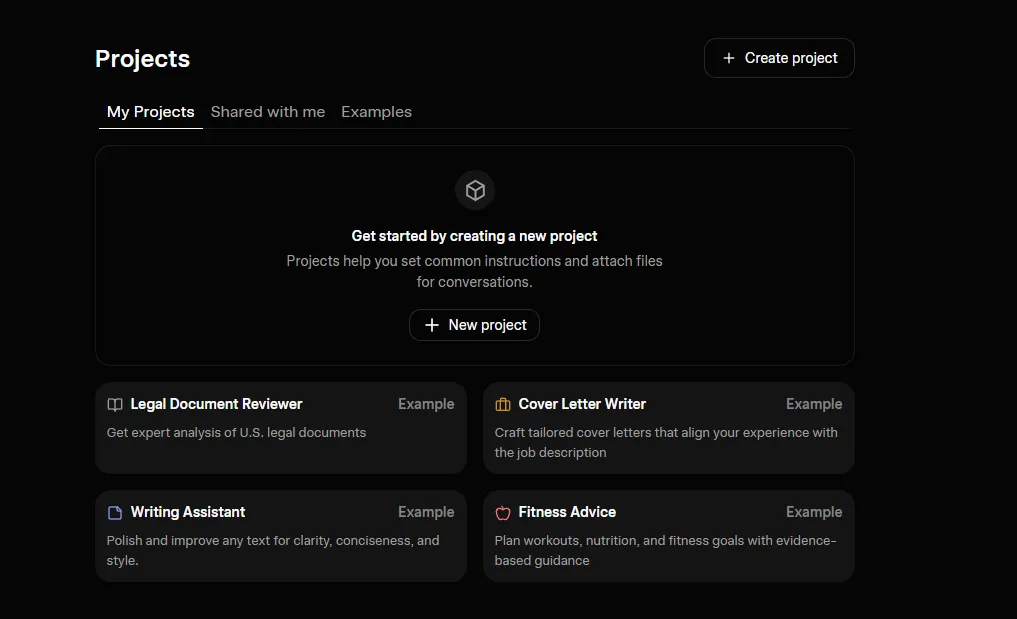
You can use Grok Projects for recurring storyboard creations (based on your ideas).
How to create more engaging Grok Imagine videos
*Prompts generated with Grok AI
Keep your prompts simple. Examples -
-
"a lone street musician playing guitar on a quiet cobblestone alley at dusk, warm lantern light, soft bokeh background"
-
"a young woman reading a book on a wooden bench under cherry blossoms, soft spring sunlight, blurred background"
-
"an old fisherman repairing his net by the harbor at sunrise, golden morning light, soft bokeh background"
-
"a single steaming cup of coffee on a rainy windowsill, moody overcast light, blurred city view behind"
Choose wider shots along with slower movements for ‘people’ in your video to generate clean results. Here are examples -
-
"a woman in a flowing red dress walking slowly through a lavender field at golden hour, wide mid-shot from waist up, gentle steady tracking shot, soft breeze moving her hair."
-
"an elderly man cycling peacefully along a tree-lined river path at sunrise, wide shot from a distance, slow smooth tracking beside him, calm and relaxed pace"
-
"a young boy flying a kite on a grassy hill, wide mid-shot showing his full upper body and the kite above, slow, gentle camera pull-back, light wind blowing"
Be specific on moods (Vague adjectives like soft, dark, or light are open-ended and ambiguous).
Be clear on lighting! Examples -
-
"a woman in a white dress walking slowly through an ancient stone courtyard, wide mid-shot from the waist up, golden hour backlight, warm glowing edges, gentle breeze, slow steady tracking shot."
-
"an old man sitting on a wooden bench reading a newspaper, wide relaxed shot, overcast diffused light, soft even illumination, light rain falling gently, very slow camera pan"
-
"a young chef chopping vegetables at an outdoor market stall, wide mid-shot from the waist up, hard rim light from the left, dramatic side lighting with deep shadows, slow steady tracking movement"
Choose camera movement. Examples -
-
"A woman in a flowing dress walking slowly through a blooming flower garden at sunset, wide mid-shot from the waist up, golden hour backlight, slow dolly in toward her face, gentle breeze."
-
"An elderly fisherman sitting by the sea mending his nets at dawn, wide relaxed shot, soft overcast diffused light, slow smooth pan right across the scene, calm and peaceful pace"
-
"A young street artist painting on a large canvas in a quiet alley, wide mid-shot, hard rim light from the left, static wide shot with very subtle breathing movement, focused and serene"
Keep your prompts short when animating an image! Just describe how a subject must move.
If dissatisfied with the first generation, run the same prompt, especially when creating image-to-video. The model might miss something the first time but lands in the second, third, or fourth attempt. Landed a prompt that worked? Save it!
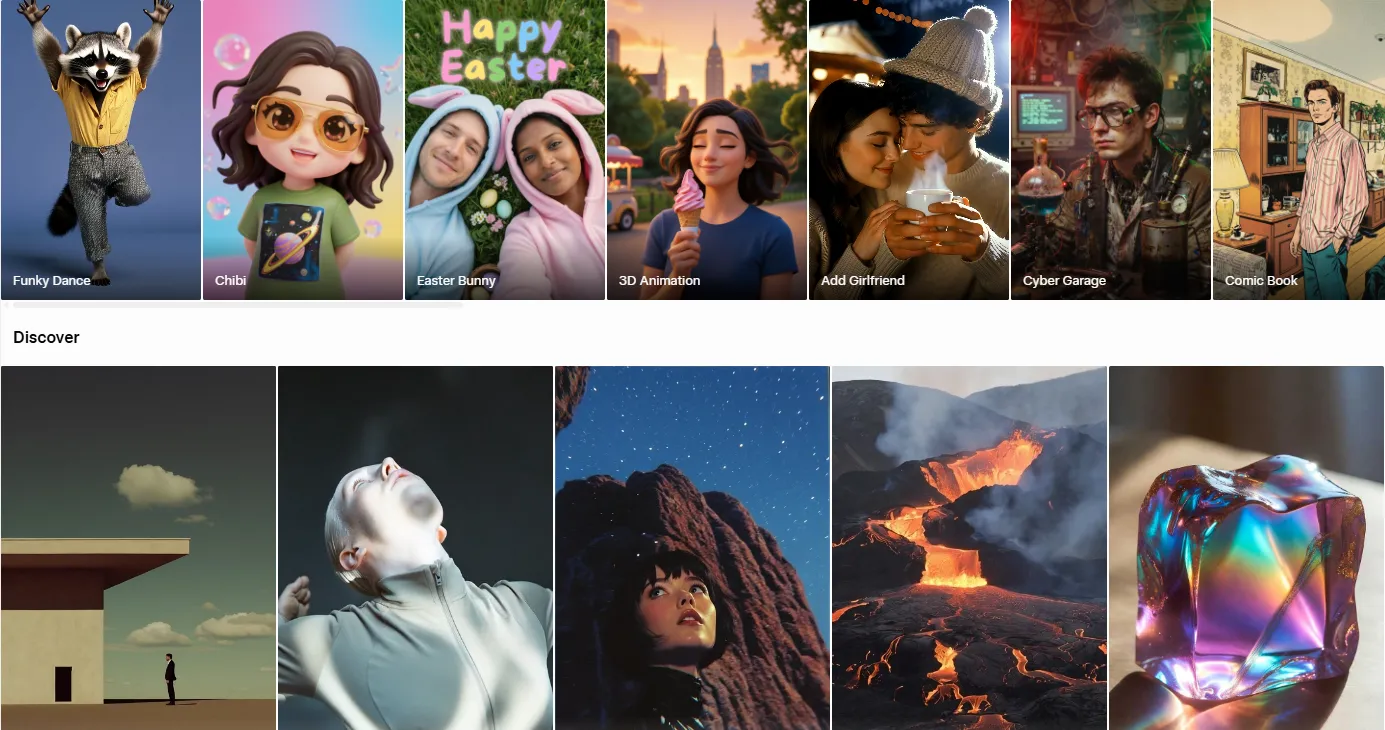
Use the pre-made featured templates, such as 3D animation, 80s anime, or Funky Dance, if you don’t want to start from scratch!
FAQs
How can I get Grok Imagine?
Get it via the Grok App on iOS or Android, or visit the official website grok.com. Sign up and access it via the “Imagine” tab on the left. You must subscribe to use its text-to-image or text-to-video tools.
Will Grok Imagine make longer videos?
It now supports these videos (6-15 seconds) per clip and can extend them if users want to. Use the feature “EXTEND from Frame” to chain video clips and extend your video to 15+ seconds.
Who can use Grok Imagine?
It’s available to both Premium and Premium+ users (X), allowing them to create images and up to 10 seconds of videos from text prompts or image-to-video tools. Subscribers can access Grok Imagine on the X app or website.
Why is Grok Imagine no longer free?
It’s moved to a paid model due to high server costs and user demand.
Can others see my Grok conversations?
Yes - anyone with the link to the Grok conversation or generated image/video can view it. Search engines also index publicly shared posts.
Is Grok AI free?
Yes, and it includes X integration and image generation.
Is Grok safe?
Generally, yes. However, we advise against adding sensitive personal information in prompts.
Can I use Grok images for clients?
Always verify xAI’s terms and conditions before commercial use.
Are Grok images free of watermarks?
Yes - and it’s one standout feature of this tool.
Keep reading
More from the blog on the same topic.
A Beginner’s Guide on How to Create How-To Videos 2024
Here’s a beginner’s guide on how to create how-to videos. Learn the steps and leverage these videos’ expansive viewership. Check this out today!
Google's AI Mode In Search Now Available To Select U.S. Users
Google is officially testing AI Mode in Search with more advanced capabilities (thinking, reasoning, multimodal) to help users even with complex questions and give them AI-powered responses that can go deeper with follow-up questions and web links.
AI for Freelancers: How to Stay Updated & What to Learn 2024
Are you a freelance content creator? Keep up with the changes and improve your AI knowledge. Here's how to stay updated with AI and what you can learn from it.
Ready to create talking videos that hold attention?
Start with a script, pick a puppet, and share a finished video in minutes. Free to try, no credit card required.